Saving online videos for offline viewing can be challenging when websites restrict downloads or provide limited format options. Content creators, travelers, and media enthusiasts may need a convenient way to organize videos, playlists, audio tracks, and subtitles on their computers. This cleverget video downloader review examines the software’s main features, potential advantages, limitations, and important safety considerations to help readers decide whether it suits their needs.
1. What Is CleverGet Video Downloader?
CleverGet is a desktop media downloading software suite designed for Windows and macOS. Its built-in browser and media-detection workflow help users find downloadable content from supported websites without switching between multiple applications.
The CleverGet Video Downloader module focuses on saving supported online videos for offline access. Depending on the website, source quality, and available features, users may find options for different resolutions, formats, and audio tracks.
The broader CleverGet suite also includes separate modules for specific media sources and streaming services. However, supported websites and capabilities can change, so users should check the current product documentation before purchasing a license.
2. Key Features of CleverGet Video Downloader
High-Resolution Video Downloads

Video quality is an important consideration when choosing downloading software. CleverGet advertises support for high-resolution video downloads, including 4K and 8K where supported by the source and the relevant module.
Actual output quality depends on the original stream, website restrictions, and available download options. A downloader cannot create genuine 8K detail from a lower-resolution source.
For users who want to download videos for offline viewing, the ability to select an available resolution can help balance image quality, storage space, and download time.
Audio Extraction and Subtitle Options
Some media workflows require audio rather than an entire video. CleverGet advertises audio extraction options, including MP3, with supported quality depending on the source and module.
Subtitle handling is another useful feature for educational videos, interviews, and multilingual content. Where supported, users may be able to save subtitles separately or preserve available language options.
These capabilities can make downloaded media easier to organize and use for personal reference, provided the intended use complies with applicable copyright rules.
Batch and Playlist Downloads
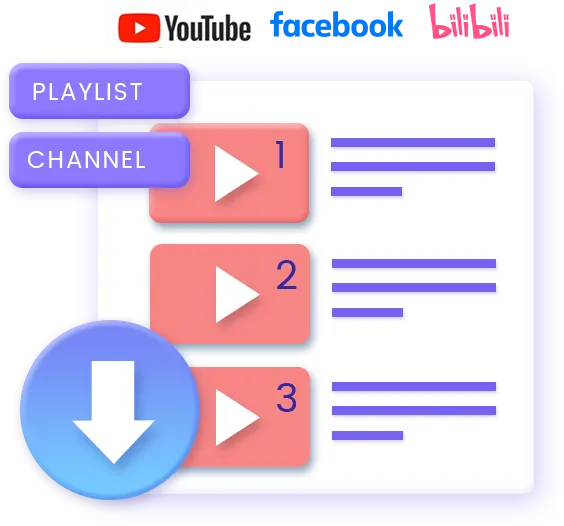
Downloading videos individually can become repetitive when working with lengthy playlists or collections. CleverGet advertises batch downloading capabilities for supported content, helping users manage multiple items through a desktop interface.
Availability may differ between websites and product modules. Before relying on batch processing for a large project, test a few files to confirm that the expected content, naming, and quality options are available.
Built-In Browser and Media Detection
The built-in browser is central to CleverGet’s workflow. Users can open a supported website, navigate to a video, and allow the software to identify available downloadable media.
This approach can be more convenient than manually searching for individual media URLs. Nevertheless, changes to website layouts, playback systems, authentication requirements, and access restrictions may affect detection.
3. Performance: Speed, Quality, and System Resources
Performance is an important part of any review of CleverGet Video Downloader. Download speed depends on several factors, including internet bandwidth, the source server, file size, and the number of simultaneous downloads.
For example, a fast broadband connection may download a compatible file quickly, while a restricted server or a large high-resolution video can take considerably longer. Batch downloading can save time overall, but it does not guarantee that every file will download successfully.
System requirements also matter. Processing multiple streams or handling high-resolution media may require additional memory, storage, and network resources.
Although the software advertises high-resolution downloads and multiple media options, independent benchmark figures should not be assumed without reproducible testing. Users can evaluate performance by downloading a small sample and comparing the resulting quality, file size, and completion time.
4. Pros and Cons of CleverGet
Pros
- Desktop interface: Provides a graphical workflow rather than requiring command-line knowledge.
- Multiple media options: Supported modules may offer different video resolutions, audio formats, and subtitle choices.
- Batch processing: Can simplify downloading supported playlists or collections.
- File management: Makes it convenient to save media directly to a designated computer folder.
- Multiple modules: Offers specialized options for different supported media sources.
Cons
- Paid features: The free version or trial may have limitations, and some functionality requires a license.
- Compatibility changes: Website updates can affect whether videos are detected or downloaded.
- Desktop requirement: Users generally need a compatible Windows or macOS computer.
- Variable output: Available resolution, subtitles, and audio tracks depend on the source and relevant module.
- Usage restrictions: Technical capability does not mean every video or streaming service permits downloading.
5. CleverGet vs. Other Downloading Methods
Different tools suit different users. Desktop applications prioritize a graphical interface, while command-line utilities may offer extensive customization for technically experienced users. Online converters provide quick access but can have fewer options.
| Feature | CleverGet | Command-line tools | Online converters |
| Ease of use | Graphical interface | Requires technical familiarity | Usually straightforward |
| Installation | Required | Usually required | Not usually required |
| Batch workflows | Available for supported content | Depends on the tool | Often limited |
| Quality choices | Depend on source and module | Depend on source and configuration | Often limited |
| Privacy considerations | Review installation and network behavior | Depends on configuration and source | Depends on website practices |
For frequent downloads, desktop software may provide a more organized workflow than repeatedly visiting online converter websites. However, users should evaluate compatibility, cost, privacy, and licensing before choosing a solution.
6. How to Download Videos with CleverGet
Getting started generally involves a few steps.
Step 1: Install the software. Download CleverGet from its official website and follow the installation instructions for your operating system.
Step 2: Configure preferences. Open the settings and select a destination folder and any available output preferences.
Step 3: Open the source. Use the built-in browser to navigate to a supported video that you are authorized to save.
Step 4: Review available options. If media is detected, examine the available resolution, format, audio, and subtitle choices.
Step 5: Start and verify the download. Monitor progress, then open the saved file to confirm that playback and quality meet your expectations.
If a download fails, check your internet connection, available storage, software version, and whether the source is still supported.
7. Frequently Asked Questions
Is CleverGet safe to install on my computer?
Download the software from its official website, verify the installer where possible, and use reputable security software. These precautions reduce risk but cannot guarantee that any application is completely safe. Review requested permissions and the vendor’s privacy information.
Is CleverGet free to use?
CleverGet offers trial or free-use options for certain functionality, while some features require payment. Check the current pricing and licensing terms before purchasing.
Why choose CleverGet over free online converters?
A desktop application may offer a more consistent interface, configurable output options, and batch workflows. Online converters can be more convenient for occasional tasks but may have advertisements, privacy concerns, or fewer options.
How can I fix a stuck download?
Check your connection, storage space, and software updates. Try a supported source again and review any error messages. If the website has changed or restricts downloading, the content may no longer be compatible.
Can using CleverGet get my streaming account banned?
No outcome can be guaranteed. Using third-party software with streaming services may conflict with their terms or access restrictions. Review the applicable rules and avoid bypassing security or access controls.
Final Verdict
CleverGet Video Downloader is worth considering for users who want a desktop workflow for saving supported online videos and organizing media files. Its advertised features include high-resolution options, audio extraction, subtitle handling, and batch processing, although availability varies by source and module.
Whether CleverGet is the right choice depends on your budget, device, preferred workflow, and the websites you use. Test the available features before committing to a paid license, and always respect copyright, creator permissions, and platform terms when saving online media.
Disclaimer: This review is for educational and informational purposes. Product capabilities, pricing, and website compatibility may change. Always follow applicable laws and the terms of the services you access.